

Deleted File Recovery — Recover Files from Recycle Bin, Format, Shift+Delete & More
Last Updated:
Lost data? Stop using the device and act now — early action is the biggest factor in successful recovery.
✔ Free file list before you pay · ✔ Free phone assessment · ✔ ISO-5 Class 100 clean room · ✔ 20+ years experience
Accidentally deleted an important file? Emptied the Recycle Bin too quickly? Reformatted the wrong drive? Experienced a ransomware attack or system crash that wiped your data? The Original PC Doctor recovers deleted, lost and corrupted files from Windows PCs, Macs, laptops, external drives, USB sticks, SD cards and enterprise servers — across every file type and failure scenario imaginable.

Deletion doesn’t mean destruction. On most storage devices, when you delete a file the operating system simply marks the disk space as available for reuse — the underlying data remains intact until it’s overwritten. The sooner you stop using the affected drive and call us, the higher your recovery chances.
Files deleted? Stop using the device NOW and call 1300 723 628 — free assessment.
Every Deletion Scenario We Handle
- Standard deletion (Recycle Bin / Trash) — whether the Recycle Bin was emptied or the file was simply deleted, the data is almost always recoverable from a spinning hard drive if you stop using it immediately.
- Shift+Delete (bypassing Recycle Bin) — no different from an emptied Recycle Bin at the disk level. Recoverable under the same conditions.
- Accidental format / “quick format” of the wrong drive — a quick format only erases the file system index. Data survives until overwritten. 90–99% recovery rate when the drive hasn’t been used since the format.
- Full format (Windows “full” / macOS “secure erase 1-pass”) — overwrites every sector once. Some data may still be recoverable using magnetic remnance techniques, but success rates are lower and recovery is significantly more complex.
- Windows reinstall over existing data — if Windows was installed on the same partition without first wiping the drive, the previous user data often survives in unallocated space.
- macOS reinstall / factory reset — APFS and HFS+ handle reinstalls differently. In many cases, previous user data is recoverable from snapshots or unallocated space before the next install’s writes fill the drive.
- Linux filesystem corruption (ext4, XFS, Btrfs, ZFS) — corrupted superblocks, journal corruption and accidental mkfs can be reversed or worked around in most cases.
- Partition deleted or resized incorrectly — disk management errors, GParted mistakes, and Windows Disk Management partition operations often delete or corrupt partition tables. The data remains intact on disk.
- NAS or server share accidentally deleted — network share deletion, volume removal in Synology/QNAP interfaces, or accidental rm -rf on a Linux server. Data is recoverable until the disk space is overwritten.
- Database files deleted (SQL Server, MySQL, Access) — deleted MDB, ACCDB, MDF, NDF, FRM or IBD database files are recoverable using the same techniques as any other file type.
- Email archive deleted (PST, OST, .eml, .mbox) — Outlook PST and OST files, Thunderbird mbox archives, and Apple Mail databases can all be recovered as complete files.
- Ransomware or malware encrypted/deleted files — depending on the ransomware variant, shadow copies, VSS snapshots, or pre-encryption backups may allow full or partial recovery. We assess every case individually.
Devices & File Systems We Recover From
What To Do Right Now
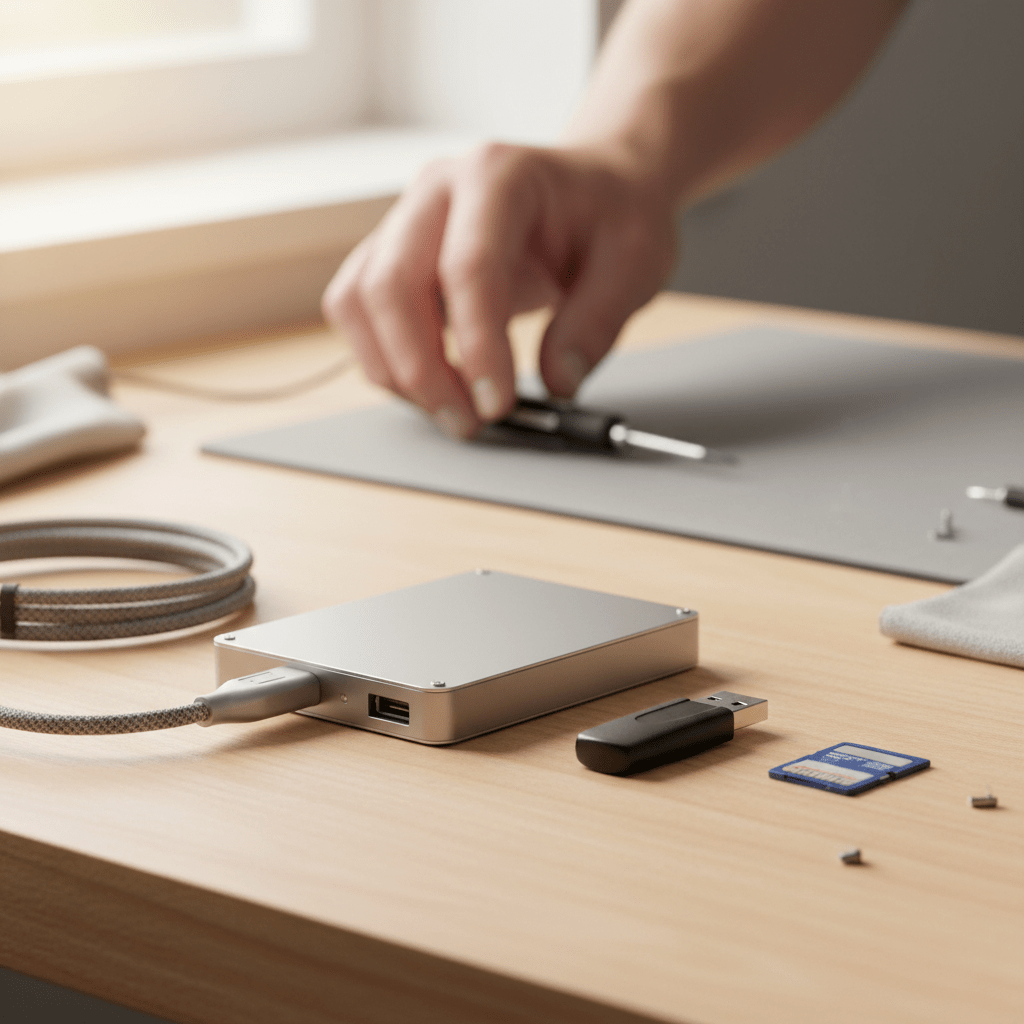
Every write to the affected drive risks overwriting the deleted data. This includes installing software, saving new files, running Windows Update, or even just leaving the PC running (Windows background processes write to disk constantly). For SSDs, even leaving the drive powered on allows TRIM garbage collection to permanently erase deleted data.
For external drives or USB sticks — unplug immediately. For internal laptop or desktop drives — shut down at the wall, not through the OS (which writes to disk on shutdown). For SSDs — shut down immediately; time is critical. Then call 1300 723 628 for a free assessment before doing anything else.
When DIY Recovery Software Is Appropriate

Consumer recovery software (Recuva, PhotoRec, R-Studio, Disk Drill) can work well for logical deletion from healthy spinning hard drives and SD cards — provided you save recovered files to a different drive, not the source. There are situations where DIY is reasonable and situations where it will make things worse:
- DIY is reasonable: Files accidentally deleted from a healthy, non-clicking, non-damaged hard drive or SD card. You stop using the drive immediately and use a reputable recovery tool. You save recovered files to a completely separate drive.
- DIY is likely to cause harm: The drive makes any unusual noises (clicking, grinding, beeping). The drive is not detected by the computer. The drive has been physically dropped or damaged. The affected device is an SSD or NVMe (TRIM will be triggered). You’re trying to recover from a RAID or NAS volume.
If in doubt, call us first. A free phone assessment costs nothing and will tell you whether DIY is safe in your situation.
Our Recovery Process
- Free phone assessment — we’ll diagnose whether this is a logical or physical failure and advise on the best approach. Call 1300 723 628.
- Forensic imaging — your drive is cloned sector-by-sector to a forensic image before any recovery begins. We never work on originals.
- File system analysis + deep carving — we first attempt file system level recovery to preserve original filenames and folder structure, then fall back to signature-based carving for files the file system can no longer see.
- File list and fixed quote — you receive a complete list of recoverable files before paying anything. No surprises.
- Delivery — recovered files delivered on a new drive, via secure cloud transfer, or in person. Original drive returned with your recovered data.
Free Resources
Independent, non-commercial references:
Get your data back — free file list, free phone assessment. Talk to a specialist today.
✔ Free file list before you pay · ✔ Free phone assessment · ✔ ISO-5 Class 100 clean room · ✔ 20+ years experience
Our Data Recovery Specialties
We recover from every device and failure type — go straight to the specialist service you need:
- Hard drive data recovery
- SSD data recovery
- USB flash drive recovery
- SD & memory card recovery
- RAID & NAS recovery
- Email & Outlook PST recovery
- Ransomware data recovery
- Photo recovery
- External hard drive recovery
- iPhone & smartphone recovery
- Mac & MacBook recovery
- Emergency & same-day recovery
- Business & server recovery
FAQs — Deleted File Recovery
How much does deleted file recovery cost?
Logical deletion recovery from a healthy hard drive or SD card typically starts at $200–$600 AUD. More complex cases involving formatted drives, partition table damage or RAID volumes range from $500–$2,000+. We provide a fixed quote with file list before any work begins — call 1300 723 628.
I emptied the Recycle Bin — is it too late?
Almost certainly not — provided you stop using the drive immediately. Emptying the Recycle Bin deletes the file system entry but leaves the data intact until the space is overwritten. The critical action is to stop all writes to the drive right now. Shut down the computer, unplug the drive, and call us.
Can you recover deleted files from an SSD?
SSDs are time-critical for deleted file recovery. When a file is deleted from an SSD, the operating system issues TRIM commands that instruct the SSD controller to erase those sectors in the background — permanently destroying the data. The speed of TRIM execution varies by SSD model and operating system, but on modern Windows 10/11 and macOS systems, deleted data can be gone within seconds to minutes. If you deleted something from an SSD, shut down the device immediately and call us — every second matters.
Can you recover files deleted from a Mac with APFS?
APFS (Apple File System, used on all Macs since 2017) is significantly harder for deleted file recovery than the older HFS+ format. APFS was specifically designed to reclaim deleted space efficiently, and on SSDs, TRIM further accelerates this. However, APFS snapshots (created by Time Machine and system updates) often contain recoverable versions of deleted files. We examine all available snapshots as part of the recovery process.
I accidentally deleted files from a shared network drive — are they recoverable?
It depends on the server type and configuration. Windows Server with Shadow Copies (VSS) enabled may have recoverable previous versions accessible directly via right-click > Properties > Previous Versions. Synology and QNAP NAS devices with snapshot schedules enabled may have recoverable snapshots. If no snapshots are configured, we can recover from the underlying RAID or disk array of the server/NAS. Check with your IT administrator before the snapshot history ages out.
Call 1300 723 628 for free expert advice — or book online now.