
Desktop & PC Data Recovery — All Brands, Windows & Mac, All Failure Types
Last Updated:
Lost data? Stop using the device and act now — early action is the biggest factor in successful recovery.
✔ Free file list before you pay · ✔ Free phone assessment · ✔ ISO-5 Class 100 clean room · ✔ 20+ years experience
A dead desktop doesn’t mean dead data. Whether your Windows PC failed during an update, your iMac’s internal Fusion Drive stopped working, your gaming PC’s NVMe drive died, or your office workstation suffered a power surge, The Original PC Doctor recovers your files, photos, documents and business data from all desktop computers — regardless of brand, age or failure type.
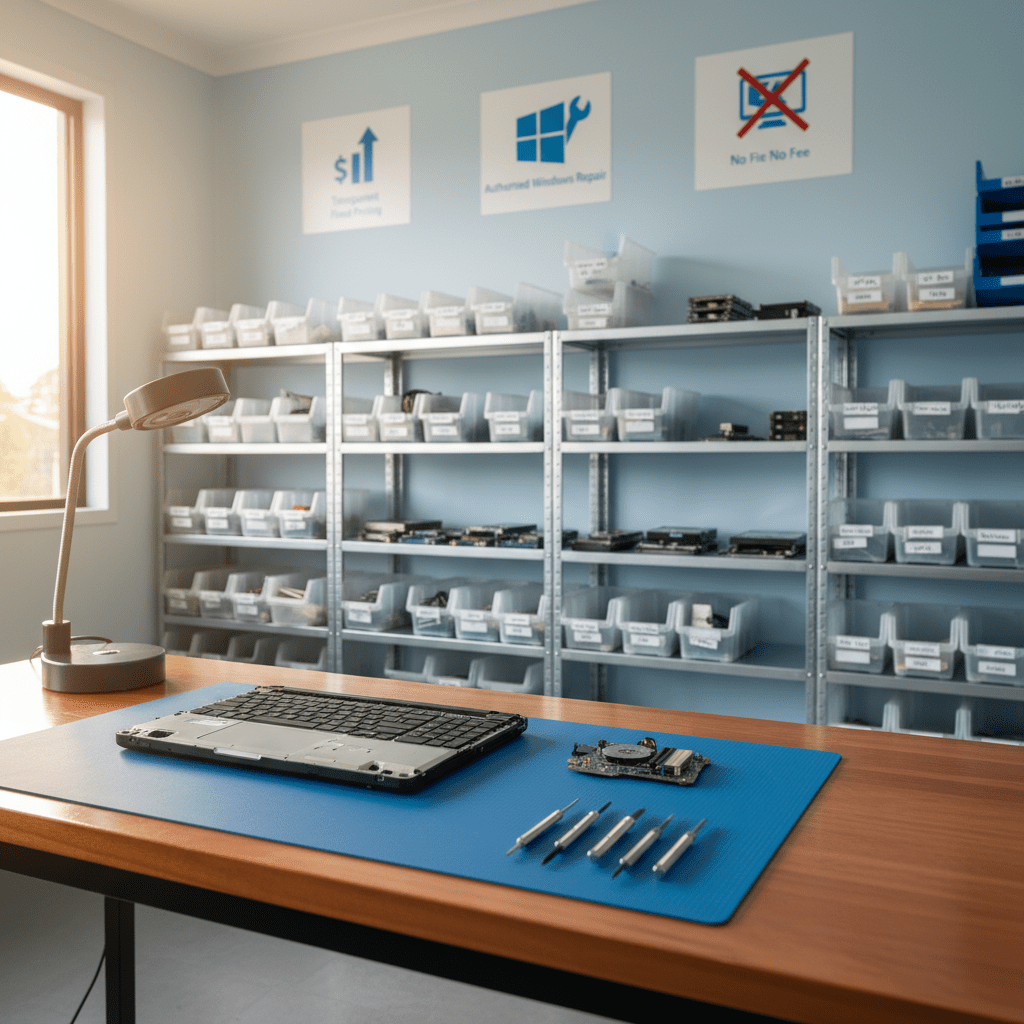
Desktop PCs contain some of the largest and most important data stores we see in recovery — years of business accounting, tax records, family photo libraries, video projects and creative work. We’ve been recovering desktop PC data for Australian home users and businesses since 2001, and we partner with Kroll Ontrack for the most complex cases.
Desktop failure? Call 1300 723 628 — free phone assessment, 24/7.
Desktop Brands & Models We Recover From
Desktop PC Failure Types We Recover From
- PC won’t POST or won’t boot past manufacturer logo — the storage device is usually intact even when the motherboard, CPU or RAM has failed. We remove the storage device and recover it directly.
- Windows won’t boot — blue screen (BSOD) or “Operating System not found” — often filesystem or boot sector corruption. The data on the drive is typically intact; only the Windows boot environment is damaged.
- Hard drive clicking, grinding or not detected in BIOS — physical drive failure. Cleanroom recovery required. Power the PC down immediately.
- PC died in power surge or lightning strike — surge often kills the motherboard and PSU but leaves the hard drive or SSD intact. We extract and recover the storage device separately.
- Overheating caused shutdown and drive failure — prolonged overheating can cause both hard drive failure (platters warp) and SSD failure (NAND cells degrade). We assess the extent of thermal damage.
- Accidental deletion or format of data drive — a second internal data drive (e.g. a D: drive) that was accidentally formatted or had files deleted. High recovery rate.
- RAID or multi-disk desktop setup failed — desktop RAID configurations via onboard Intel RST or AMD RAIDXpert, or dedicated desktop RAID controllers. We reconstruct the array.
- Apple iMac Fusion Drive failure — Fusion Drives combine a small SSD with a spinning hard drive into a single logical volume managed by macOS CoreStorage. When either component fails, the entire Fusion Drive becomes inaccessible. We recover both components and reconstruct the CoreStorage volume.
- iMac or Mac mini with T2 or Apple Silicon internal SSD failure — Apple Silicon and T2-secured Macs encrypt internal storage at the hardware level. Recovery requires specialist Apple Silicon techniques.
- Water or liquid damage to PC — liquid shorting motherboard components while the drive was powered. We dry and assess the storage device and recover from it directly.
- Ransomware or virus attack encrypted PC data — we assess for VSS snapshots, shadow copies and pre-encryption file recovery opportunities.

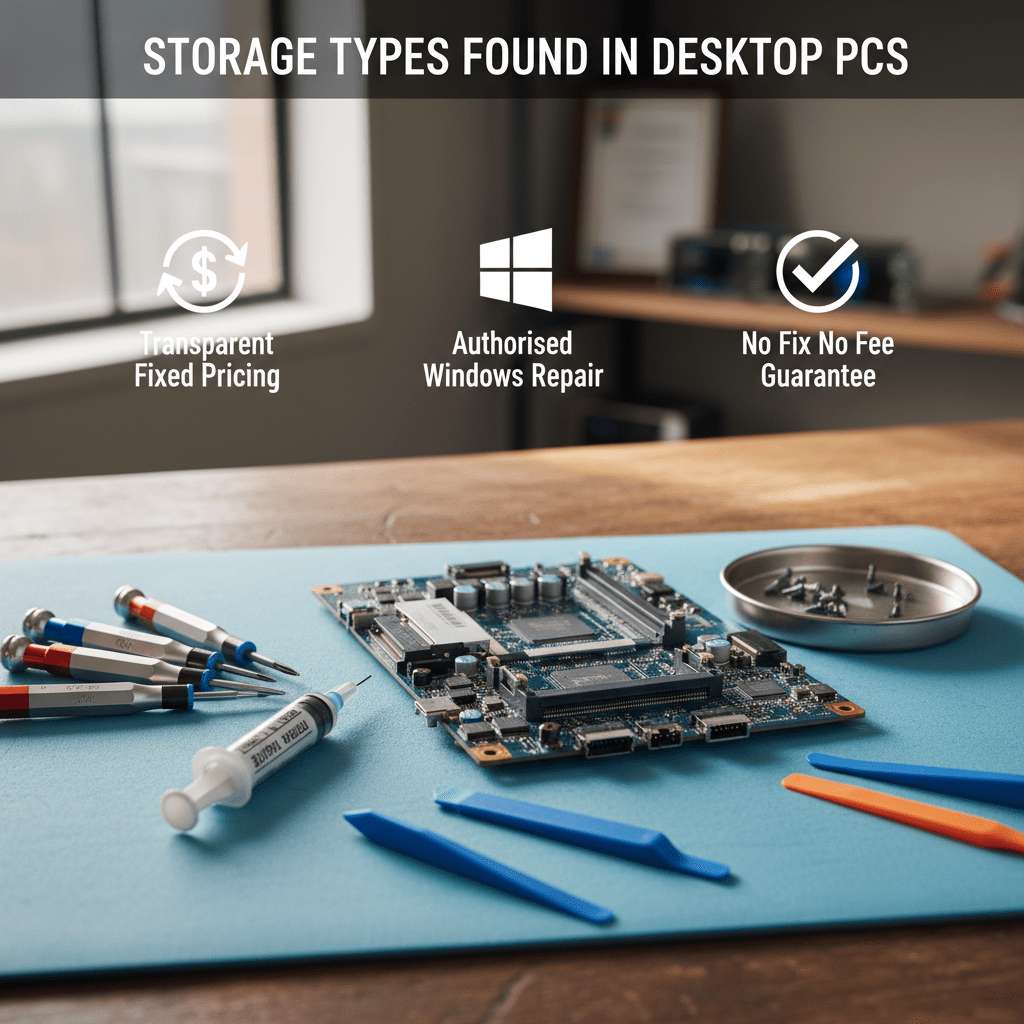
Storage Types Found in Desktop PCs
Modern and legacy desktops use a wide variety of storage technologies, each requiring different recovery techniques:
- 3.5″ SATA hard drives — the most common desktop storage type. Seagate Barracuda, WD Blue/Black/Red, Toshiba X300. Full range of logical and physical recovery.
- 2.5″ SATA SSD — Samsung 870 EVO, Crucial MX500, Kingston A400 and others used in desktop upgrades. Time-critical for deleted file recovery due to TRIM.
- NVMe M.2 SSD — Samsung 970/980/990 EVO/Pro, WD Black SN850X, Seagate FireCuda. PCIe 3.0 and 4.0 drives. Increasingly common in gaming PCs and modern workstations.
- Apple T2 and Apple Silicon internal SSD — soldered, hardware-encrypted. Requires specialist recovery techniques.
- Apple Fusion Drive (SSHD) — hybrid CoreStorage volume requiring component-level recovery and virtual reconstruction.
- IDE/PATA hard drives — legacy desktops from the 1990s and early 2000s. We maintain IDE hardware for reading these drives.
- SCSI hard drives — used in older workstations and servers. We have SCSI adapters and controller cards for all common SCSI standards.
What To Do When Your Desktop PC Fails
Continue running a PC that makes clicking or grinding sounds. Run recovery software from the failing drive — always recover to a separate drive. Reinstall Windows over your data. Attempt to open the PC case and “swap” the hard drive into another PC without assessing the drive health first. Leave a clicking drive powered on.
Power the PC down at the wall switch immediately. If it’s a separate data drive (D: or second drive), unplug the power cable from that drive specifically. Call 1300 723 628 and describe the symptoms — we’ll advise whether you can remove and bring just the drive, or whether the whole PC needs to come in.
Our Recovery Process
- Free phone assessment — describe the failure symptoms, PC brand/model, and what data is at risk. We’ll give you a diagnosis and price range straight away. Call 1300 723 628.
- Drive extraction and imaging — we remove the storage device from your PC and clone it sector-by-sector to a forensic image. We never work on originals.
- Logical or physical recovery — logical failures (file system, partition, deletion) are resolved from the image. Physical failures (head crash, PCB, motor) are handled in our cleanroom or with professional firmware tools.
- File list and fixed quote — you receive a complete recoverable file list before paying anything.
- Delivery — recovered data delivered on new storage, returned with your repaired or original PC, or via secure cloud transfer.
Free Resources
Independent, non-commercial references:
Get your data back — free file list, free phone assessment. Talk to a specialist today.
✔ Free file list before you pay · ✔ Free phone assessment · ✔ ISO-5 Class 100 clean room · ✔ 20+ years experience
Our Data Recovery Specialties
We recover from every device and failure type — go straight to the specialist service you need:
- Hard drive data recovery
- SSD data recovery
- USB flash drive recovery
- SD & memory card recovery
- RAID & NAS recovery
- Email & Outlook PST recovery
- Ransomware data recovery
- Photo recovery
- External hard drive recovery
- iPhone & smartphone recovery
- Mac & MacBook recovery
- Emergency & same-day recovery
- Business & server recovery
FAQs — Desktop PC Data Recovery
How much does desktop PC data recovery cost?
Logical recovery (file system corruption, accidental deletion, failed Windows update) typically starts at $300–$700 AUD. Physical drive recovery (clicking drives, head crash, PCB failure) typically ranges from $800–$2,000. Apple Fusion Drive and Apple Silicon SSD recovery have specific pricing — call for a quote. We provide a fixed price with file list before any work begins. Call 1300 723 628.
Can you recover data if the PC motherboard is completely dead?
Yes — in almost all cases the storage device (hard drive or SSD) survives motherboard failure. We remove the drive from the dead PC and connect it directly to our recovery systems. The motherboard failure is irrelevant to the data recovery process.
My iMac Fusion Drive failed — can you get my data back?
Yes. Fusion Drive failure is one of our specialities. We recover both the SSD and HDD components of the Fusion Drive separately, then virtually reconstruct the CoreStorage volume to extract the file system. This is a complex recovery that requires specialist macOS CoreStorage knowledge — consumer recovery software cannot handle it correctly.
Can you recover from an encrypted Mac (FileVault) or Windows PC (BitLocker)?
Yes, provided you can supply the encryption key or recovery key. For FileVault 2, we need your login password or iCloud recovery key. For BitLocker, we need the 48-digit recovery key (stored in your Microsoft account, Active Directory, or printed at setup). Without valid credentials, the encrypted sectors are recoverable at the hardware level but cannot be decrypted into usable files.
Can I just bring in the hard drive, or does the whole PC need to come in?
Just the storage device is usually sufficient — and preferred. If you’re comfortable removing the drive, bring just the drive. If not, bring the whole PC and we’ll extract it. For laptops and all-in-one desktops (iMac, Dell XPS AIO) where drive access is complex, bring the whole machine.
Call 1300 723 628 for free expert advice — or book online now.